

How to Design an AI Copilot Sidebar for B2B SaaS

Tanjim Islam
Founder & CEO · · 6 min read


To design an AI copilot for SaaS, put it in a sidebar only when people need help across a whole screen or several records. Then design six parts: a context chip, suggested actions, a prompt box, draft cards with an apply step, sources and history. The copilot sees only what the user can see, and changes go through review.
Should the copilot be a sidebar or inline?
Start with the job, not the panel. If the help is about one field, such as "rewrite this note", put the AI inline, next to the field. A sidebar for a one field job is a detour.
A sidebar earns its space when the work spans the screen: questions across many records, a task with several steps, or a draft that touches more than one place. It also helps when people want to keep the AI's work in view while they keep working.
Many products end up with both. Inline buttons for small jobs, a sidebar for the bigger ones. Where AI fits in an existing product is covered in adding an AI feature to an existing SaaS product.
What are the six parts of a copilot sidebar?
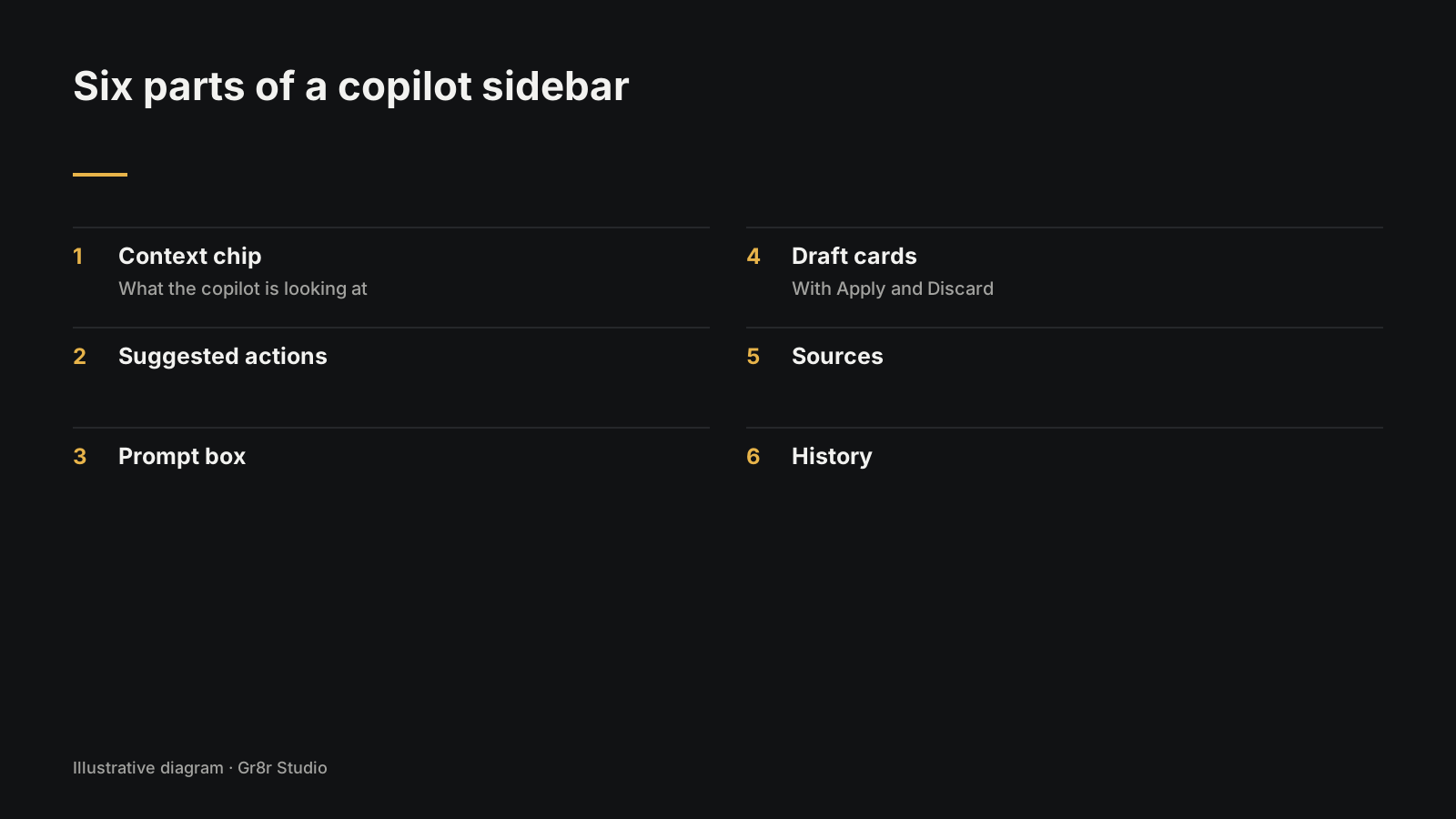
A good copilot sidebar has six parts: a context chip, suggested actions, a prompt box, draft cards with Apply and Discard, sources, and history.
1. Context chip
At the top of the panel, show what the copilot is looking at: "Looking at: Invoice 1042" or "Looking at: 38 filtered rows." People can remove it or swap it. This one chip answers the question users ask most: what does it know right now?
Microsoft's guidelines for human AI interaction ask designers to "Show contextually relevant information" and to "Make clear what the system can do" (Microsoft Research, Guidelines for human AI interaction design, published 1 February 2019). The chip does both in one line.
2. Suggested actions
Three or four buttons based on the current screen: "Summarize this account", "Draft a reply", "Find overdue items." They teach people what the copilot is good at, without a tutorial. Change them when the screen changes.
3. Prompt box
Keep it pinned to the bottom of the panel. AWS's Cloudscape design system says to "Keep the composer pinned and let only the message log scroll so the input is always reachable" (AWS Cloudscape, Generative AI chat, published 20 November 2024). For narrow side panels, Cloudscape also recommends aligning every message to the same side and telling authors apart with an avatar or name.
4. Draft cards with an apply step
The copilot should never edit the record silently. It produces a draft card. The person opens it, sees the change against the current version, then applies or discards it. After applying, show an undo.
5. Sources
Every answer that states a fact links to the record, file or message it came from. Cloudscape recommends inline citations with numbered markers and a "Sources" list for this reason (AWS Cloudscape, Generative AI chat, published 20 November 2024). How to show sources and doubt in detail is in how to show AI confidence and sources in your UI.
6. History
Keep past conversations and applied changes, tied to the record they were about. When someone returns to Invoice 1042 next week, the earlier thread should be there.
How should the copilot handle permissions?
The copilot acts with the signed in user's permissions, never more. If a sales rep can't see salary data, neither can the copilot running for them. Design for this in three places:
- Context chip. Shows only records the user can open.
- Refusals. When a request needs data the user can't access, say so plainly and suggest who can help. Don't pretend the data doesn't exist.
- Actions. Anything that sends, pays or deletes asks for confirmation, even if the user has the right to do it.
What does a full copilot flow look like?
Here is an illustration, not a real customer or product. Picture an account manager on a customer page. The context chip reads "Looking at: Northwind account." They tap "Summarize recent activity." The panel shows five bullet points, each with a source link to an email or ticket. They type "Draft a renewal note." A draft card appears. They open it, edit one line, and apply it to the account's notes field. An undo toast sits at the bottom for a few seconds.
Every step is visible, and the person stays in charge of what changes.
What has Gr8r built that you can open?
For HostOp, we designed the product, built its Framer website and built an agentic design system for it.
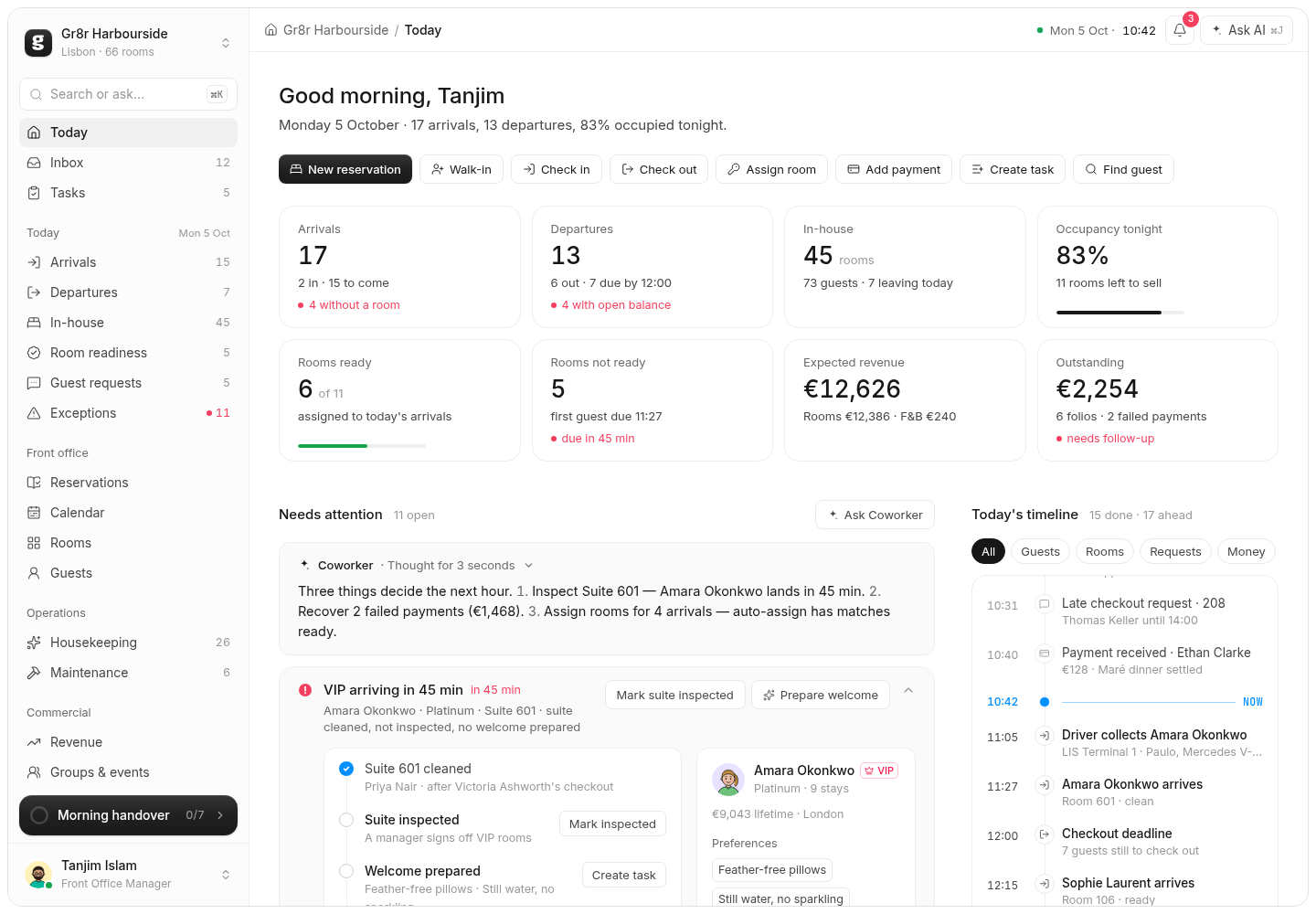
One of our own products puts a copilot inside a working SaaS. Atrium is a hotel operating system with an Ask AI button and a Coworker panel on the Today screen that lists three next steps, each with its own action button. Built by Gr8r for its own portfolio. Not client work.
The broader set of patterns for agents that act on their own is in AI agent UI patterns that keep users in control.
What should you check in a design review?
Check that the sidebar fits the work, shows what it can see, offers changes as drafts with undo, links facts to sources, never sees more than the signed in user, and keeps history with the record.
- The copilot is in a sidebar only for multi step or cross record work.
- A context chip shows what it can see, and people can change it.
- Suggested actions change with the screen.
- The prompt box stays pinned and reachable.
- Changes arrive as drafts, with a view of what will change.
- Applied changes have an undo.
- Facts link to their sources.
- It never sees more than the signed in user.
- History stays tied to the record.
The full set of AI screen states is in AI UX design: the seven screen states.
We design copilots as part of our AI product design work.
Frequently asked questions
Should an AI copilot be a sidebar or inline?
Put it inline when the help is about one field or one action. Use a sidebar when people need help across a whole screen, several records or a task with several steps. Many products use both.
How do you show what context an AI copilot is using?
Add a context chip at the top of the panel that names what the copilot is looking at, such as one record or a filtered list. Let people remove or change it, and link every factual answer to its source.
How should an AI copilot handle permissions?
It should act with the signed in user's permissions and never more. Refuse plainly when a request needs data the user can't access, and ask for confirmation before anything that sends, pays or deletes.
Should a copilot change data directly?
Not silently. Have it produce a draft, show the change against the current version, and let the person apply or discard it. Offer undo after applying.
What suggested actions should an AI copilot show?
Three or four buttons based on the current screen, such as "Summarize this account" or "Draft a reply". They teach people what the copilot is good at without a tutorial. Change them when the screen changes.
About the author
Tanjim Islam is the founder and CEO of Gr8r Studio. He founded the studio in 2023. Here he writes about how Gr8r approaches hiring, product design and AI engineering. More on the About page.
If you want help with this, book a 30 minute call.