

Adding an AI Feature to an Existing SaaS Product

Tanjim Islam
Founder & CEO · · 7 min read


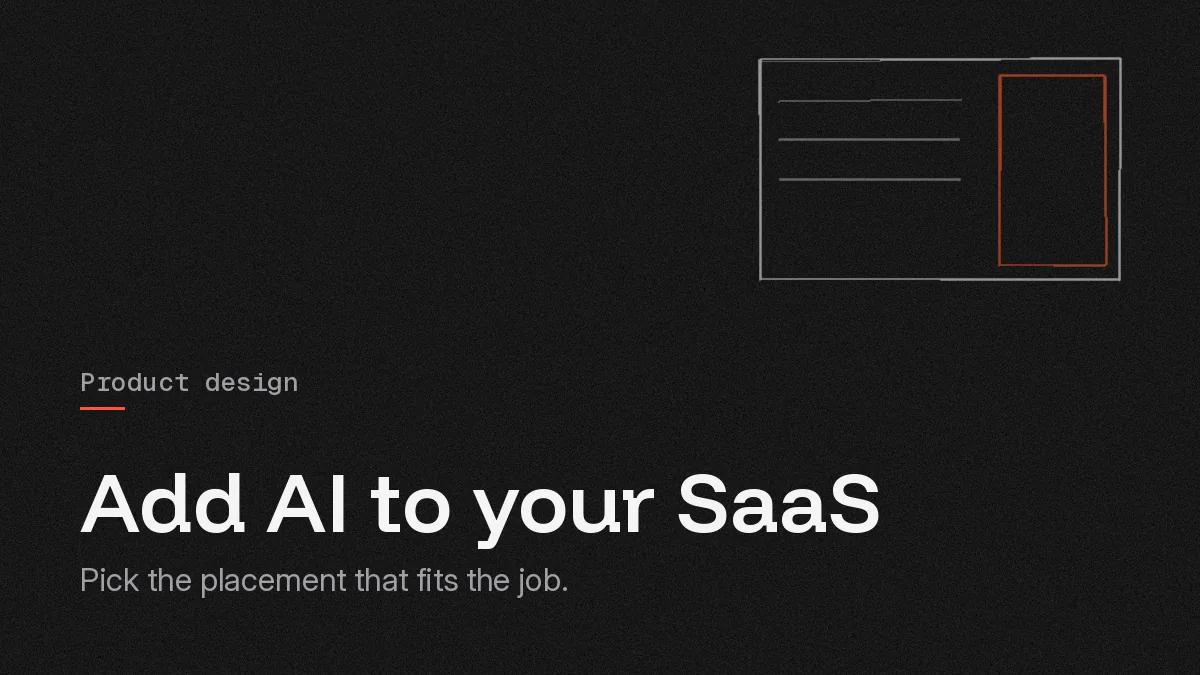
This is a how to for teams with a live product and real customers. The question it answers is the one most guides skip: where in your product should the AI feature live? Design details for each piece have their own posts, linked as we go.
Where should an AI feature go in your product?
Right where the user already does the job by hand. Not in a new tab. Not behind a sparkly button on the dashboard.
Picture a user in your invoicing product, retyping line items from a supplier's PDF. The AI feature belongs in that exact form, as a "Fill from PDF" button next to the first empty field. If you put it in a chat window two clicks away, they will never find it.
Google's People + AI Guidebook says the same in its own words: "Even the best AI will fail if it doesn't provide unique value to users." It suggests you "map existing workflows" first, so you can see which steps "could be automated or augmented" (Google PAIR, User Needs + Defining Success, fetched 25 Oct 2026).
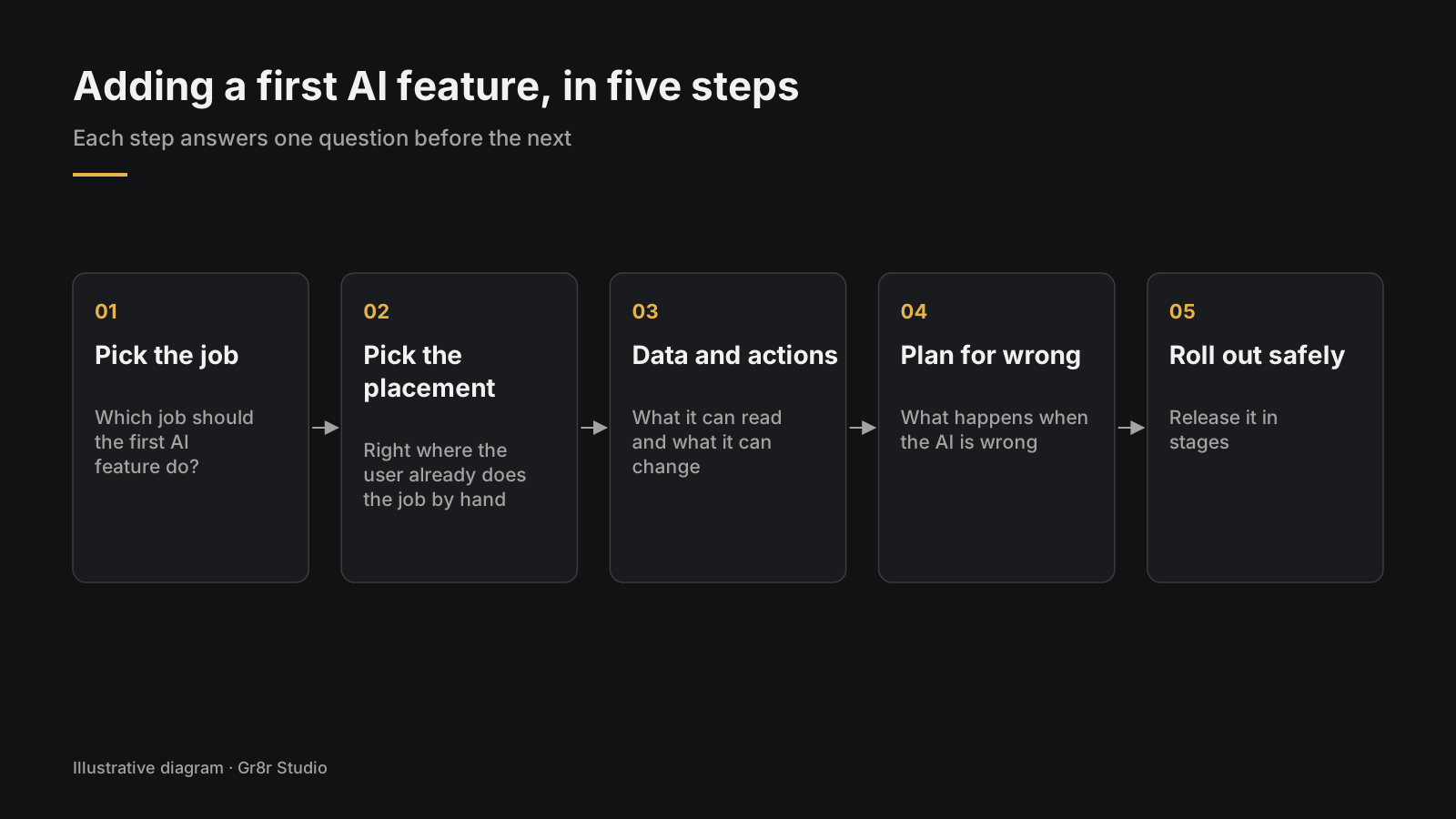
Step 1: Which job should the first AI feature do?
Pick a job with three traits:
- People already do it often. Weekly at least.
- It is tedious. Retyping, summarising, sorting, searching.
- A wrong answer is easy to spot and cheap to fix. The user sees the output before it counts.
Then ask the question PAIR puts plainly: does AI add anything here? Its guide warns that "often a rule or heuristic-based solution will work just as well, if not better, than an AI version." A good filter or a saved search beats a model that guesses.
PAIR also gives a useful split. "Automate tasks that are difficult, unpleasant, or where there's a need for scale." "Augment tasks that people enjoy doing, that carry social capital." Retyping line items is automate. Writing a note to a key customer is augment: draft it, let them edit.
Step 2: Which placement fits the job?
There are five common places. Match the place to the job.
| Placement | What it looks like | Best for | Watch out for |
|---|---|---|---|
| Inline | A button or suggestion inside the field or row | Fill, rewrite, extract on one item | Clutter if every field gets one |
| Side panel | A copilot panel next to the work | Questions about what is on screen, multi step help | Becoming a chat nobody opens |
| Command bar | A shortcut box where users type what they want | Power users jumping between actions | Hidden from new users |
| Background | Runs on its own and leaves results to review | Sorting, tagging, flagging at volume | Users not trusting what they did not see |
| New screen | A dedicated page for one AI job | A job big enough to own a page, like a report builder | Feels bolted on if the job is small |
Start inline or background for the first feature. They sit closest to the work and need the least new learning. If you are leaning toward a panel, our post on designing an AI copilot for SaaS covers the sidebar in depth.
Step 3: What data and actions should the feature get?
The least it needs to do the one job. Nothing more.
OWASP lists "Excessive Agency" as a top risk for apps built on large language models. Its root causes are "excessive functionality," "excessive permissions" and "excessive autonomy" (OWASP Gen AI Security Project, LLM06:2025 Excessive Agency, fetched 25 Oct 2026).
In plain words, for an existing SaaS product:
- Read before write. A feature that summarises tickets should read tickets. It should not be able to close them.
- Work as the user, not as an admin. OWASP advises you "execute extensions in user's context," so a user's AI can only see what that user can. In a multi tenant product this is the line between one customer's data and another's.
- Ask before big actions. OWASP says to "require a human to approve high-impact actions before they are taken."
- Let your own code decide what is allowed. OWASP's advice is to "implement authorization in downstream systems rather than relying on an LLM to decide if an action is allowed or not."
Step 4: What happens when the AI is wrong?
It will be wrong. Design for that before launch, not after the first angry ticket.
Every AI feature needs four things on screen:
- A preview. The user sees the output before it is saved.
- An easy edit or undo. PAIR recommends "allowing users to preview, test, edit, or undo any functions that your AI automates."
- A signal of how sure it is. Highlight the fields the model was unsure about.
- A clear error state. When it fails, say what happened and what to do next.
We cover each of these in detail in designing error states for AI features and how to show AI confidence in the UI.
Step 5: How do you roll it out safely?
Small, measured and reversible.
- Turn it on for a small group first. Internal staff, then a handful of friendly customers.
- Decide what success means before launch. PAIR offers a template: "If { specific success metric } for { your team's AI-driven feature } { drops below/goes above } { meaningful threshold } we will { take a specific action }." Fill in every blank.
- Watch what people keep. Count how often users accept, edit or throw away the output. Heavy edits mean the feature is close but not there.
- Keep an off switch. A feature flag lets you turn it off for everyone in minutes if it misbehaves.
What does this look like in a real product?
Here is an illustration, not a real client. A project management SaaS hears the same complaint every week: "Our status updates take an hour every Friday."
- Job: draft the weekly status update from the week's finished tasks.
- Placement: inline, a "Draft update" button at the top of the existing status update form.
- Data and actions: reads tasks the user can see for that project. Writes nothing until the user clicks Save.
- When wrong: the draft opens in the editor, tasks it mentions are linked so users can check them, and a clear message appears if there were no finished tasks to summarise.
- Rollout: internal team for two weeks, then ten customers, tracking how much of the draft gets kept.
No new tab. No chat. One button where the hour was being lost.
You can see a similar placement in Datum, a command center for construction projects. Its AI agents sit in the same sidebar as Projects, Schedule and Budget, and the issues they raise land in the normal operations feed marked "Needs approval". Built by Gr8r for its own portfolio. Not client work.
What should you check before you ship?
Run seven checks before launch:
- The job is written in one sentence, from the user's side.
- Placement chosen from the five, with a reason.
- The feature reads and writes only what that one job needs, as the signed in user.
- Preview, edit or undo, confidence signal and error state are designed.
- A success sentence is filled in using the PAIR template.
- A feature flag can switch it off.
- You know who owns the prompts, the code and the data. Our AI ownership checklist covers what to ask for.
If you want a team to design and build the feature into your product, that is our AI software development work.
Frequently asked questions
Which AI feature should a SaaS product add first?
Pick a job users already do often by hand, that is tedious, and where a wrong answer is easy to spot and cheap to fix. Retyping, summarising and sorting are common first choices. Check that plain rules would not do the job just as well.
Should an AI feature be inline or a chat?
Start inline, inside the screen where users already do the job. A chat or side panel suits open questions about what is on screen, but it is easy to ignore. Match the placement to the job, not to what is fashionable.
How do you roll out an AI feature safely?
Turn it on for internal staff, then a small group of customers. Define success before launch, track how often users accept or edit the output, and keep a feature flag so you can switch it off quickly.
How do you keep an AI feature from leaking customer data?
Give the feature only the data and actions its one job needs, run it with the signed in user's permissions rather than an admin account, and let your own code decide what is allowed, not the model.
Do you need to rebuild your product to add AI?
Usually not. Most first AI features sit inside an existing screen as a button, a panel or a background job. What you do need is a clear job, tight permissions and screens for previews and errors.
About the author
Tanjim Islam is the founder and CEO of Gr8r Studio. He founded the studio in 2023. Here he writes about how Gr8r approaches hiring, product design and AI engineering. More on the About page.
For the approval side, Relay shows drafts that wait for a person: an outreach email written by an agent sits under Needs attention with a Review button until someone opens it. Built by Gr8r for its own portfolio. Not client work. It runs on demo data, so it shows the screens, not results.
If you want help with this, book a 30 minute call.