


Lumis: an AI workspace where every page has an assistant beside it.
How we designed an AI automation product that drafts, summarises and runs workflows for a team, and keeps a person in charge of every result.
Built by Gr8r for its own portfolio. Not client work.
- Client
- Lumis
- Project
- AI automation web app
- Platforms
- Web app, desktop-first
- Deliverable
- Desktop screens + design spec in Figma
The problem
AI help is scattered across tabs.
A product team writes briefs, reviews PRDs, summarises feedback and prepares decks every week. The AI that helps lives in separate chats and tools, so its work is hard to find, hard to check and easy to lose. We designed Lumis around one idea: the assistant sits inside the workspace, next to the work, and everything it does is labelled and reviewable.
- 1
AI work gets lost
Drafts and summaries end up in chat histories, away from the documents and tasks they belong to.
“What did AI do for us today?”
- 2
Output is hard to trust
A generated brief arrives without a source, a model or a confidence level, so someone rereads everything.
“Can I use this as it is?”
- 3
Repeat jobs are done by hand
The same brief-from-meeting-notes job runs every week, and every time someone starts it from scratch.
“Can this run on its own?”
Information architecture
Work first, team and setup after.
The sidebar follows how a team uses the product: the AI workspace, the people and their board, then configuration, with active threads pinned below.
Workspace
- Command Centre
- AI Threads
- Documents
- Insights
- AI Agents
- AI Automation
Team
- Team Members
- Workspace Board
Configure
- Integrations
- Settings
The workflow
From raw notes to a reviewed result.
- 1
Ask
Start a thread, or let an automation pick up a new document.
- 2
Draft
An agent drafts, summarises or finds gaps, with its model shown.
- 3
Review
Apply, retry or edit the result. Low confidence goes to a person.
- 4
Track
Activity, accuracy and time saved roll up to the Command Centre.
The product
An assistant that shows what it did.
Six close-ups of how the interface keeps AI work visible, checkable and under the team's control.
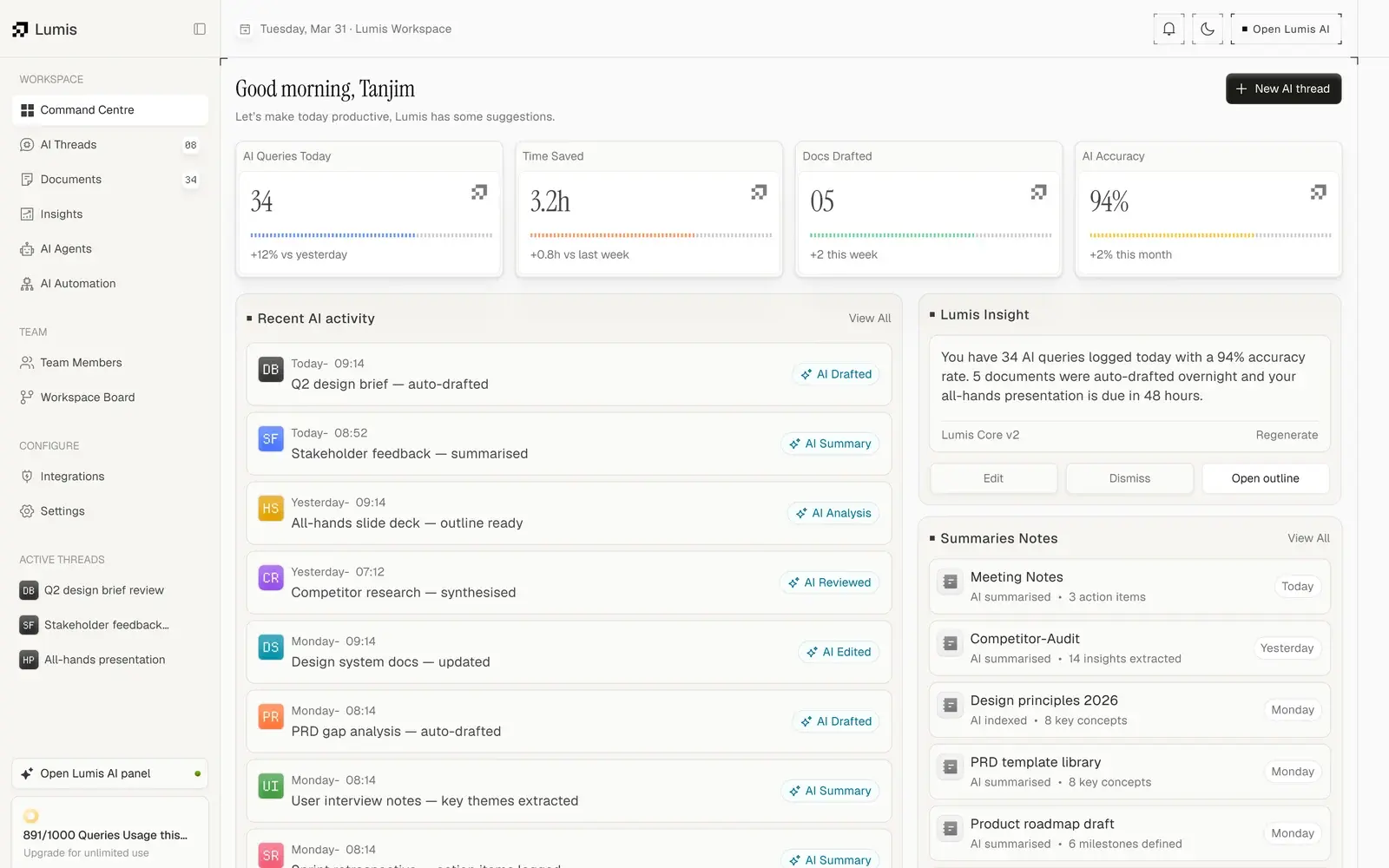
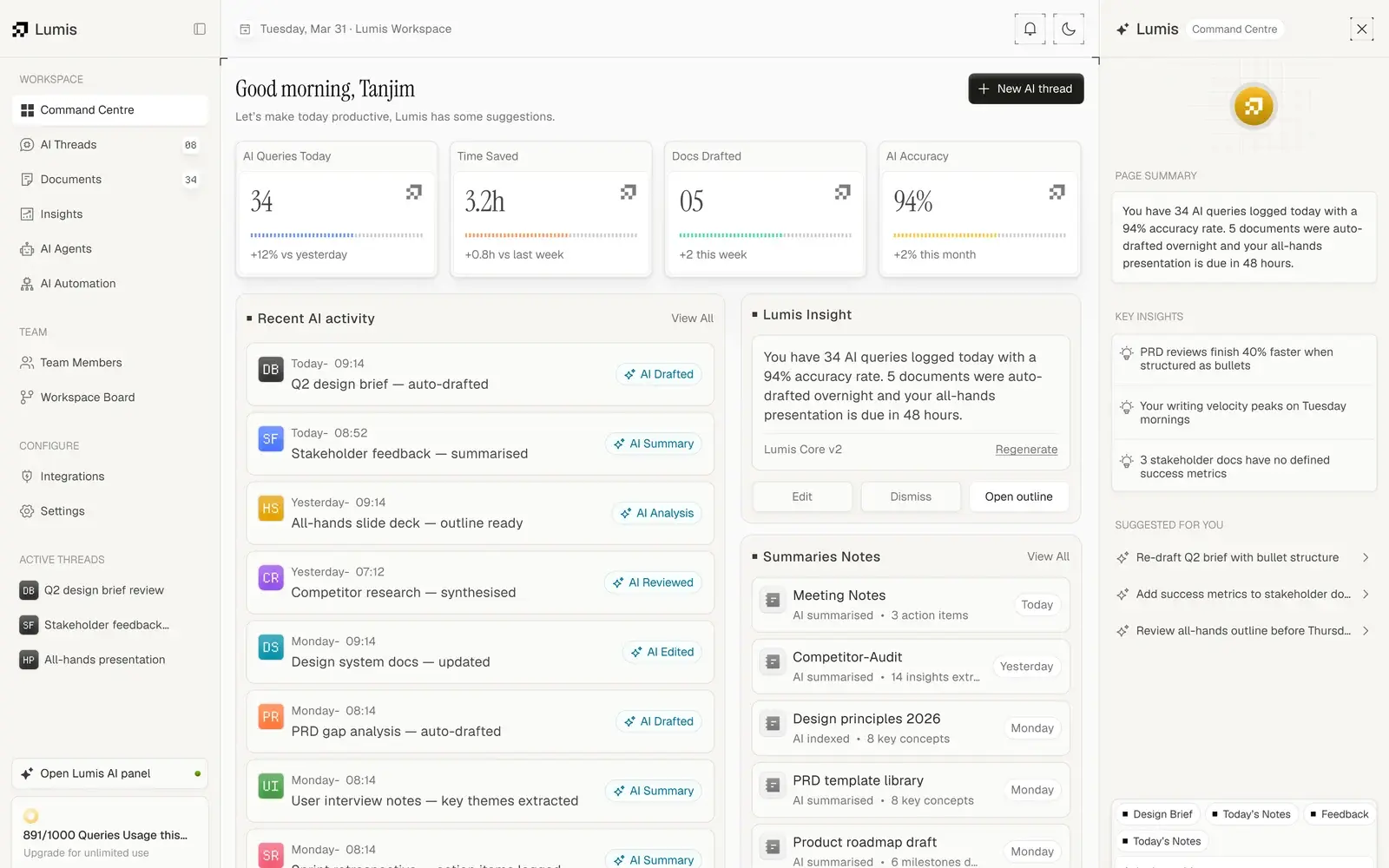
- Command Centre
The day's AI work, on one screen.
Four KPIs show queries, time saved, documents drafted and accuracy. Every item in the activity feed says what AI did to it, and the Lumis panel adds a page summary, key insights and suggested next steps.
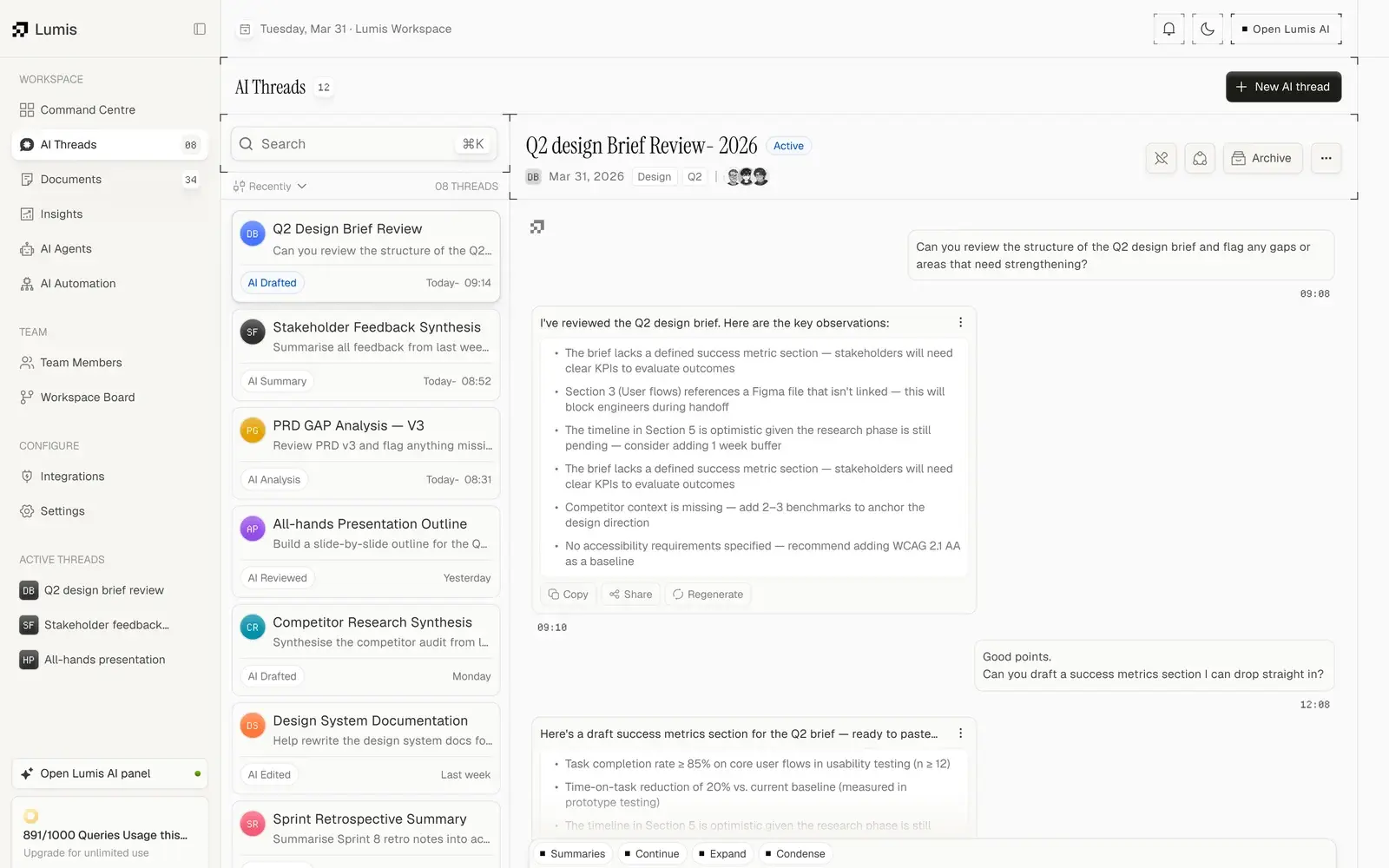
- AI Threads
Conversations that stay with the work.
Each thread has a title, date, tags and the people involved. Answers come back as structured points with copy, share and regenerate, and quick actions continue, expand or condense the thread.
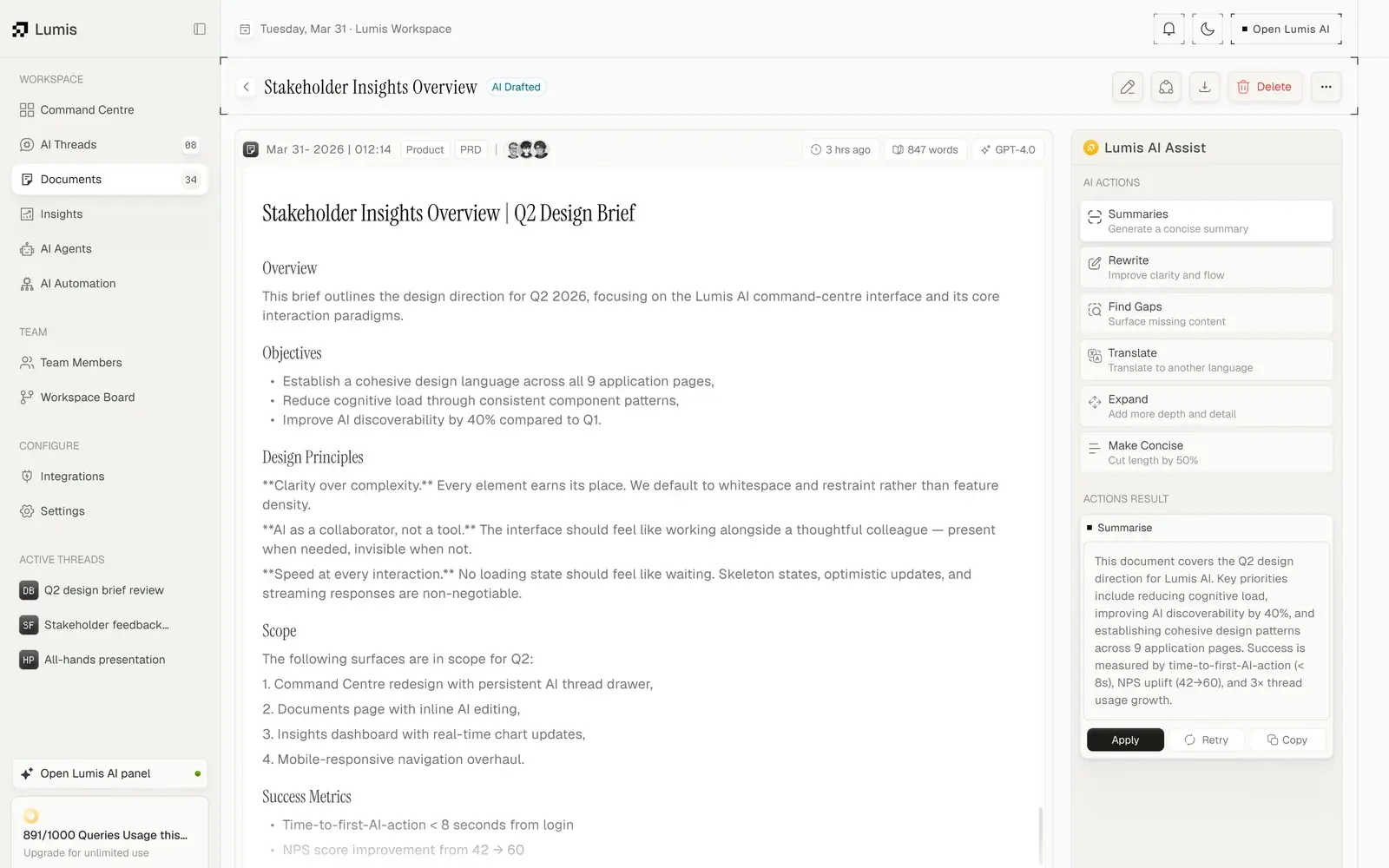
- Documents
AI editing inside the document.
An AI-drafted document shows its word count, model and last edit. Lumis AI Assist sits beside it with six actions, and every result waits for Apply, Retry or Copy before it touches the text.
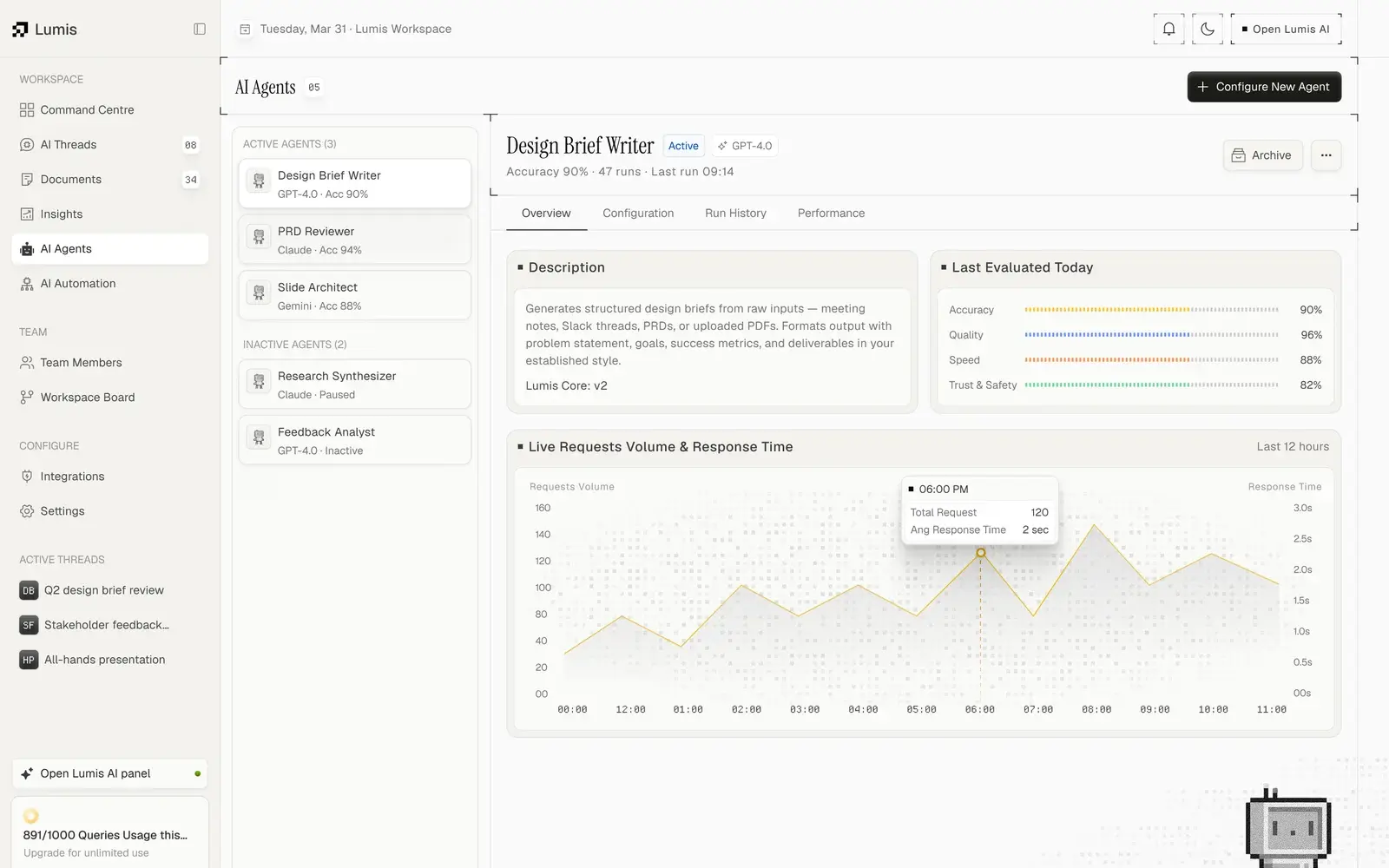
- AI Agents
Agents with a report card.
Every agent shows its model, accuracy, number of runs and last run. Scores for accuracy, quality, speed and trust sit beside a live chart of request volume and response time.
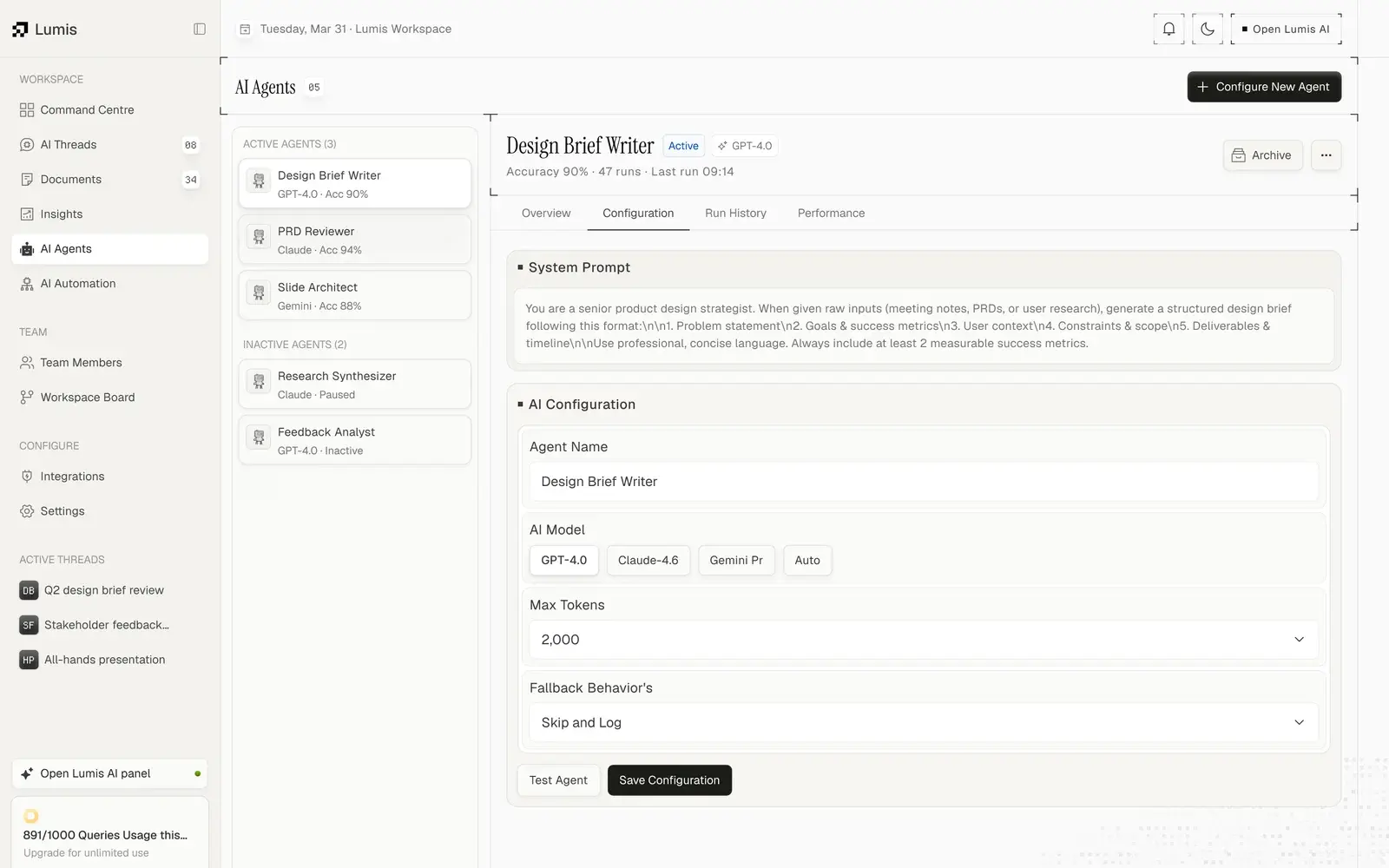
- Configuration
Set up an agent without code.
The system prompt, model, maximum tokens and fallback behaviour are plain fields. Test Agent runs it before Save Configuration puts it to work.
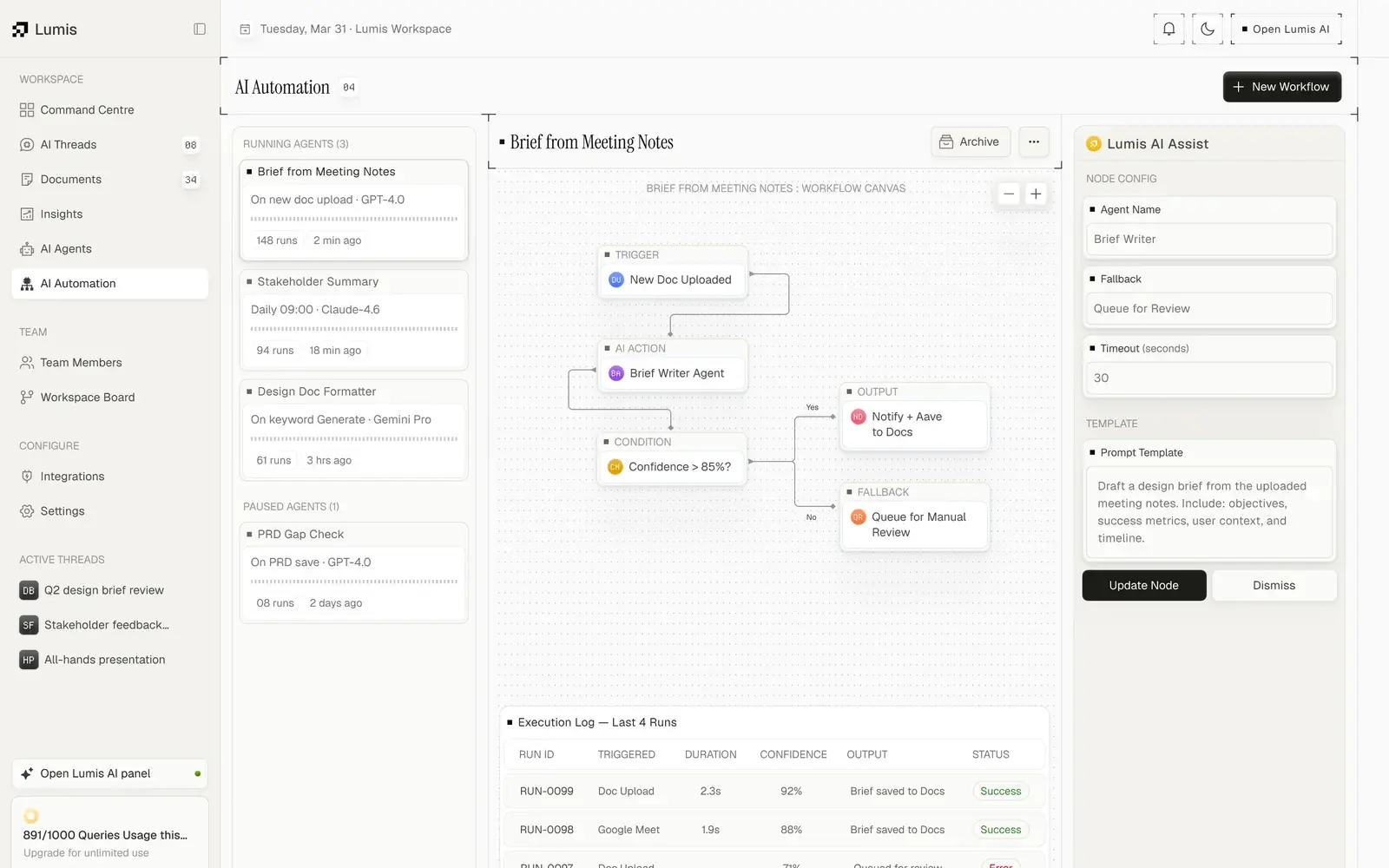
- AI Automation
Workflows with a safety net.
A canvas links a trigger, an AI action and a condition. Results above 85% confidence go straight to Docs; the rest are queued for a person to review. An execution log records every run.
Interaction
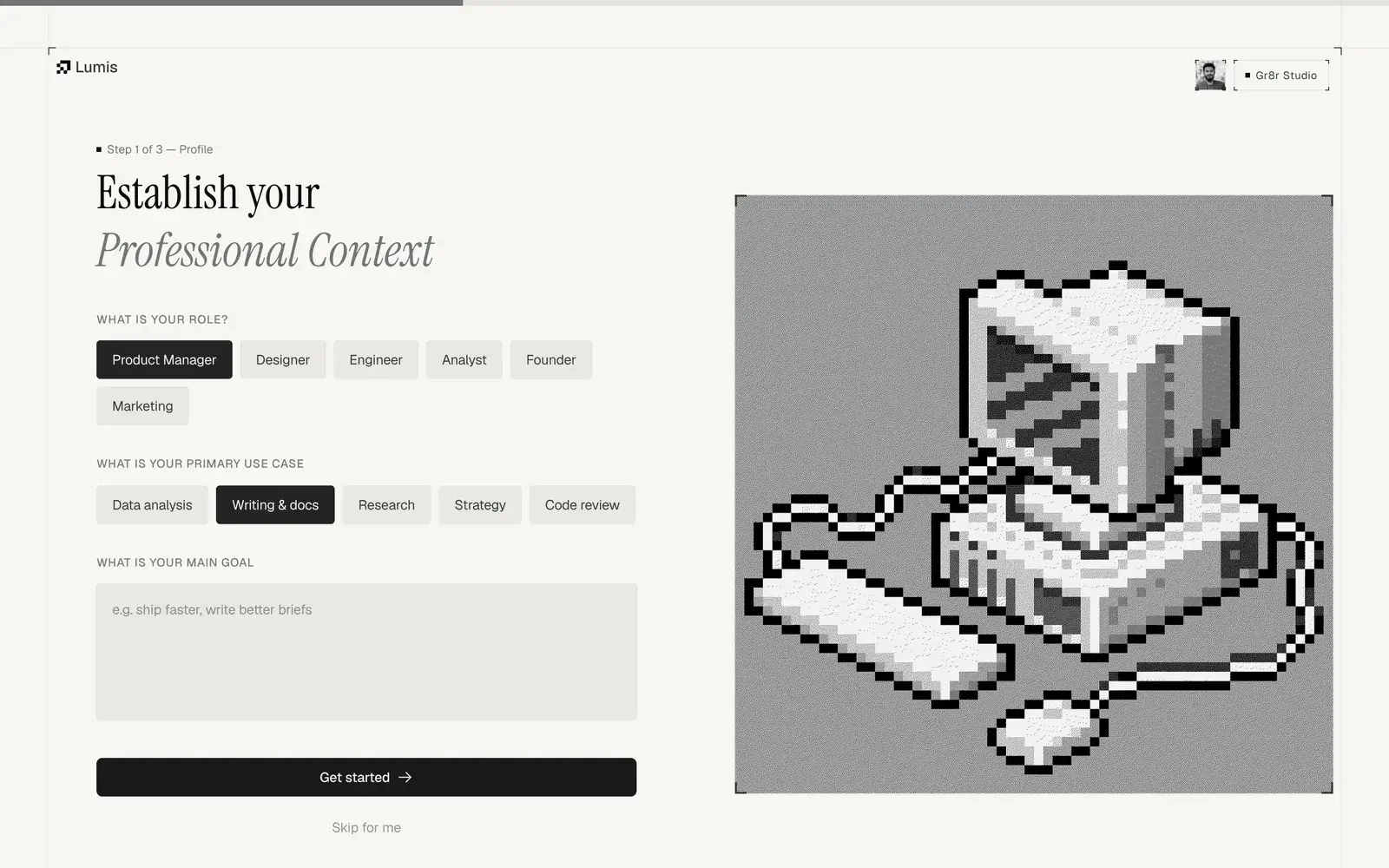
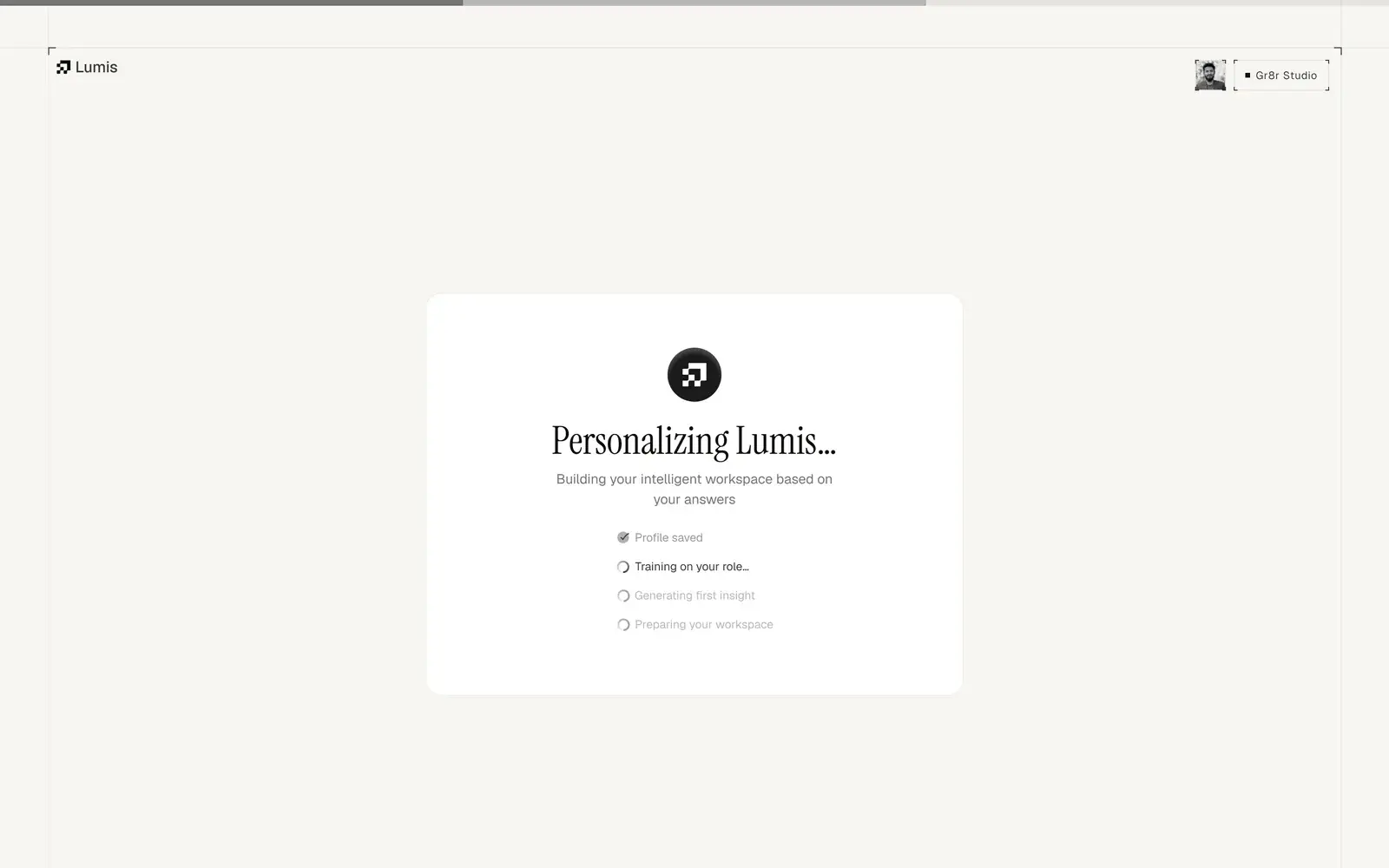
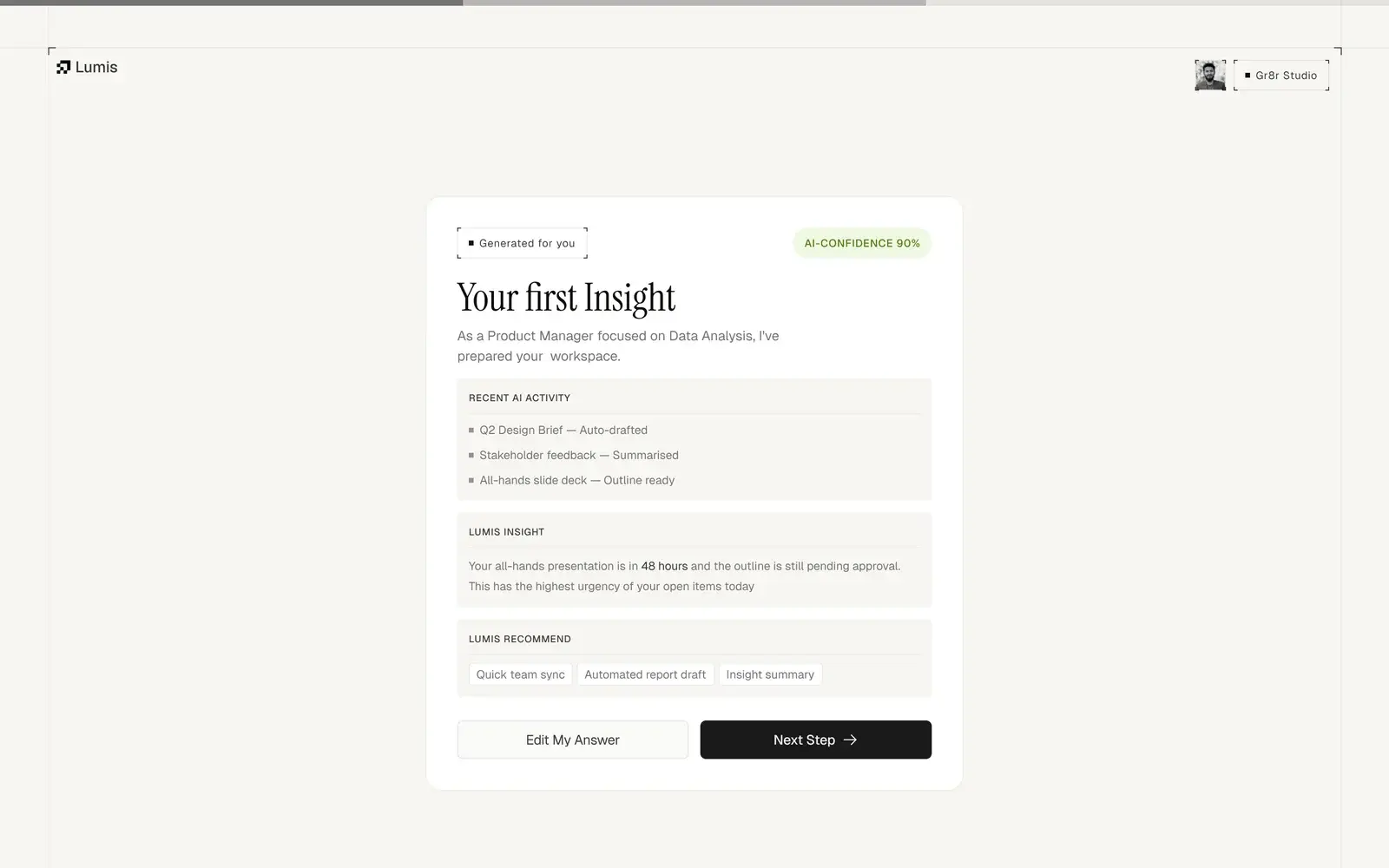
Three answers, then a useful first screen.
Onboarding asks for a role, a use case and a goal, then shows the first insight before the workspace opens.
Style guide
Typography & colours.
Instrument Serif for headings and titles, Geist for body, labels and buttons. A warm near-white base, three text greys and dark buttons keep the focus on the work, with the gold Lumis mark as the only accent.
Primary text
HEX #0E0E0C
Text/Primary
Border
HEX #E5E5E5
Secondary text
HEX #747474
Text/Secondary
Muted text
HEX #969695
Text/Muted
Card
HEX #FAFAF8
Surface/Card
Geist
- Regular
- Medium
Every screen
Every screen, straight from the file.
Final designs from the product file, with demo data: sign-up, threads, documents, the team board, agents, automations and settings.
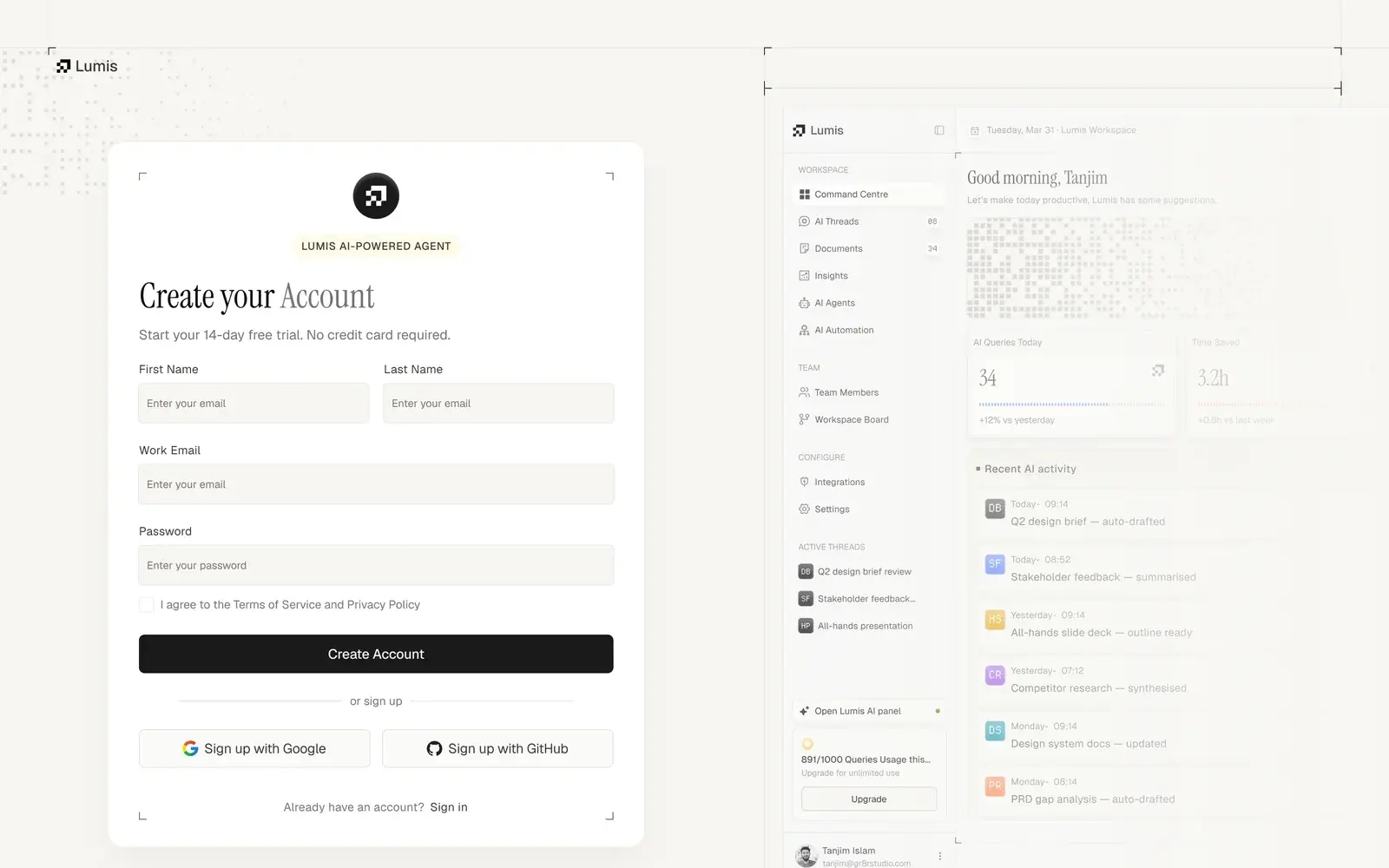
Create your Lumis account 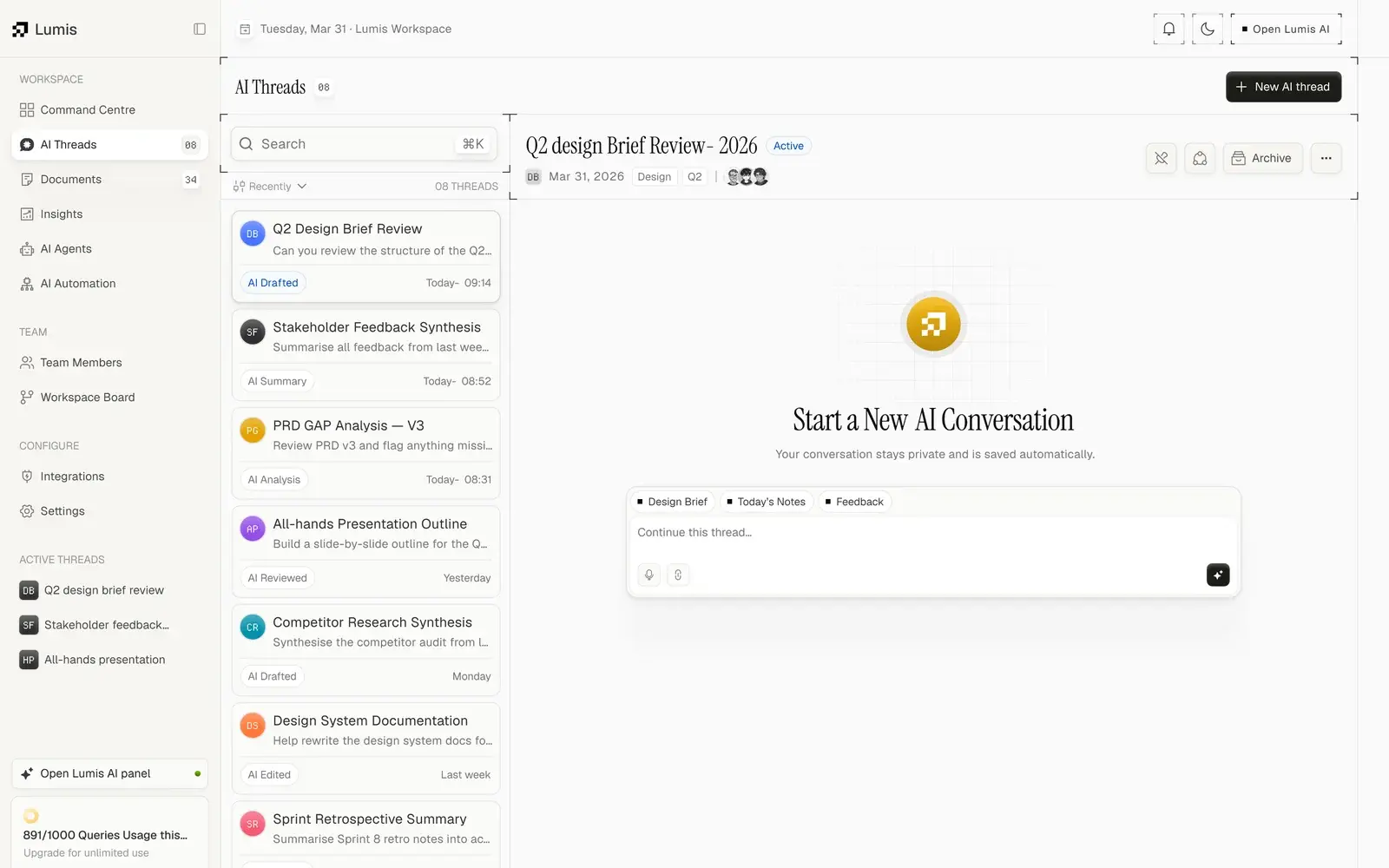
AI Threads 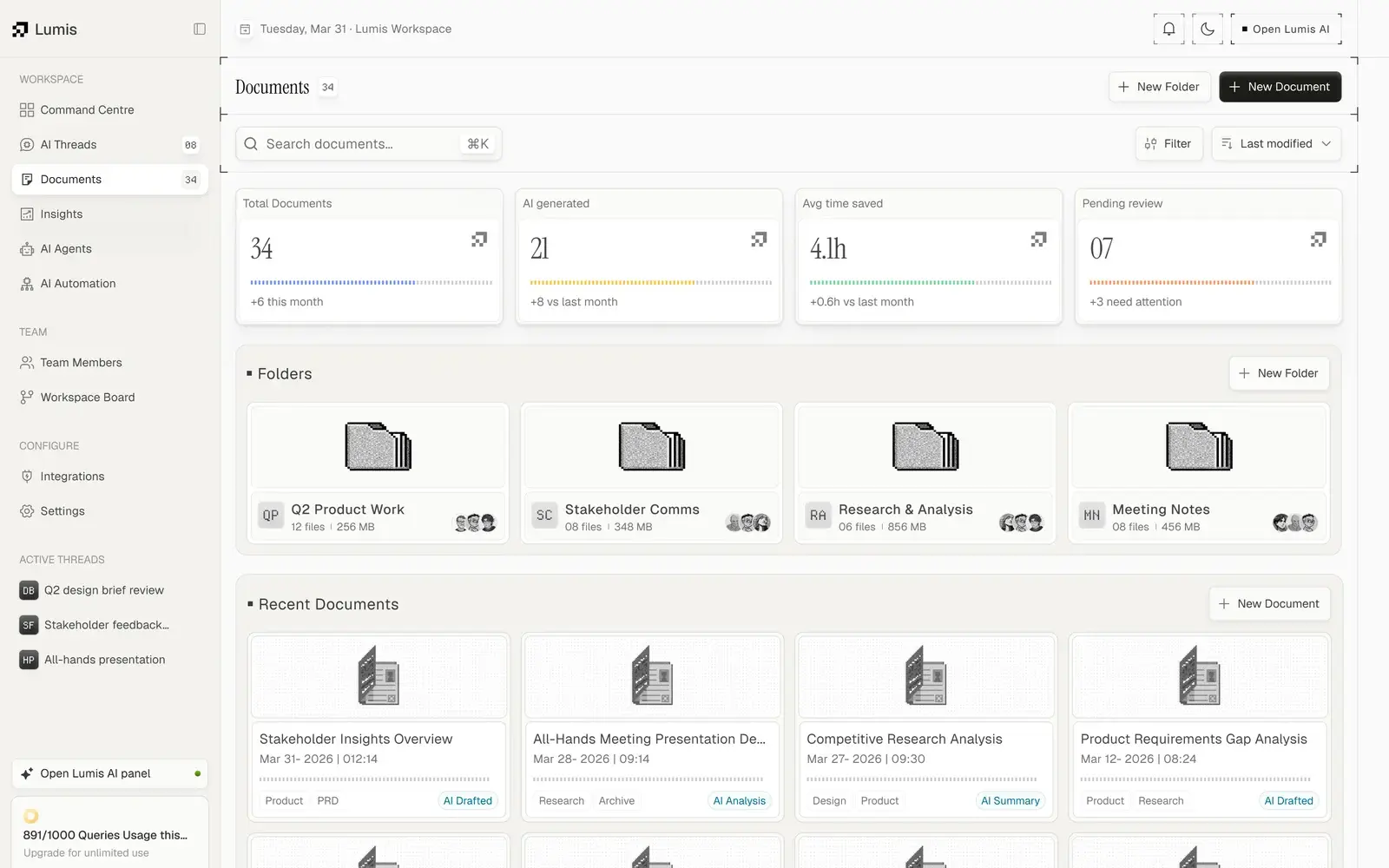
Documents and folders 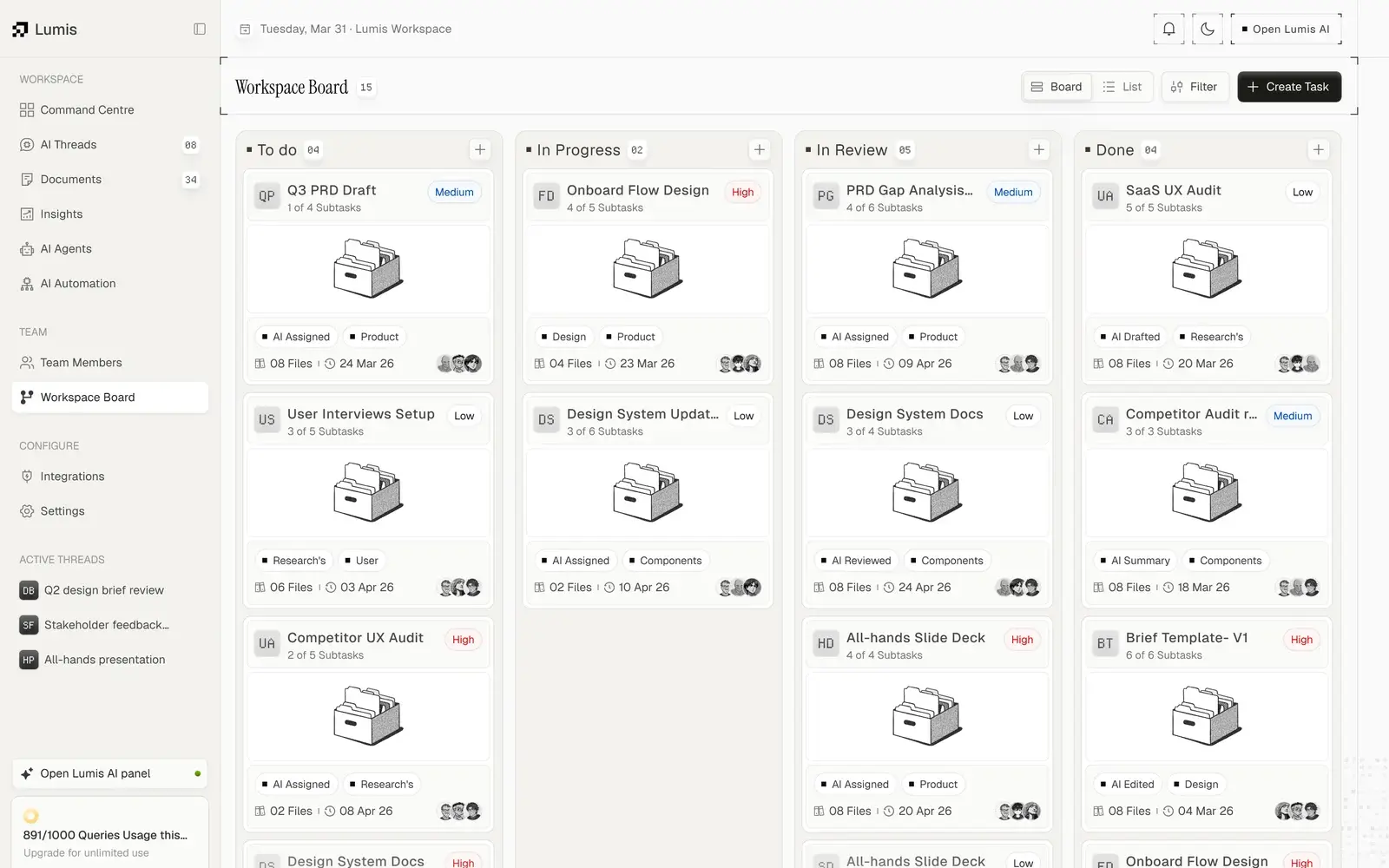
Workspace Board with tasks by status 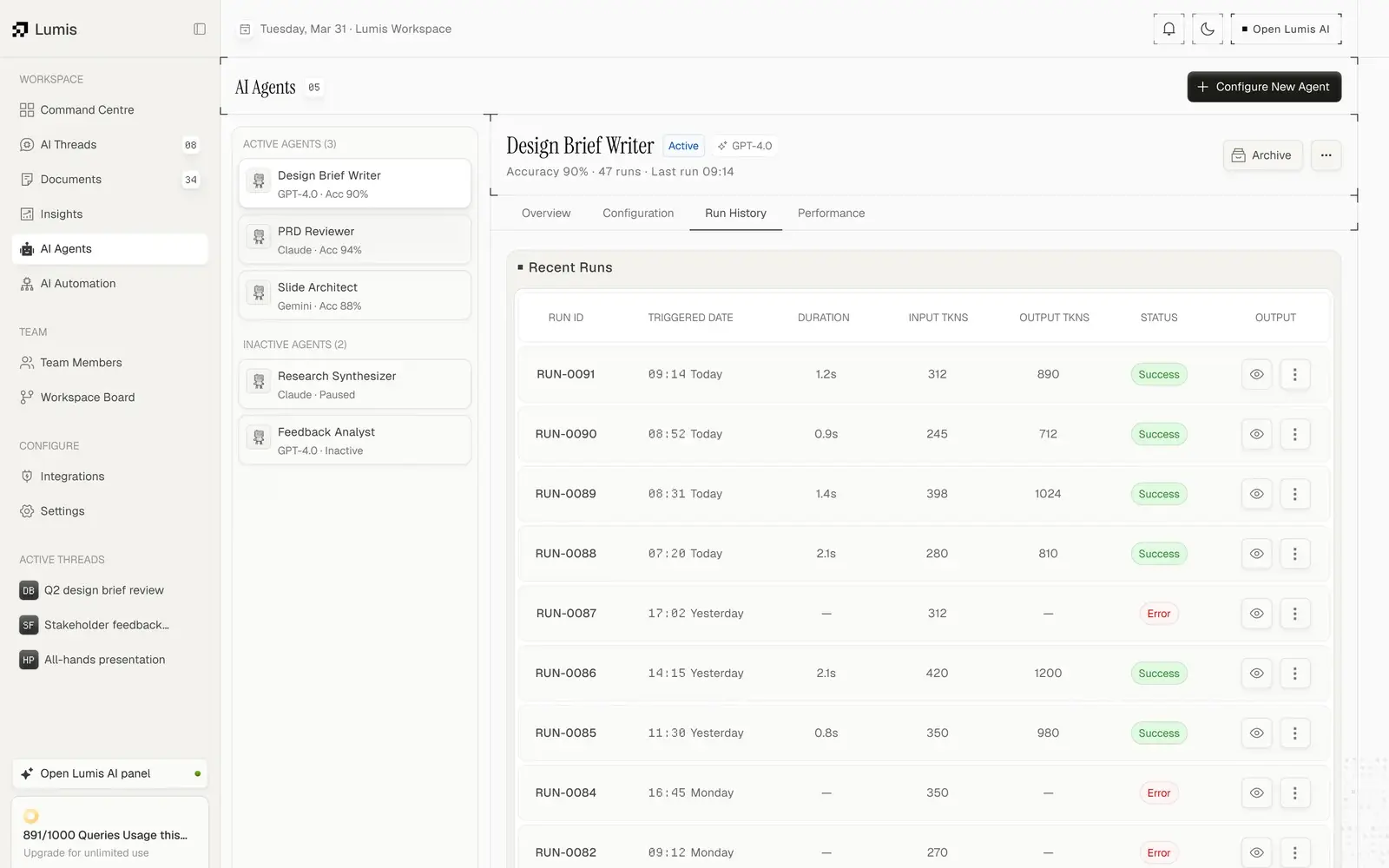
Agent run history 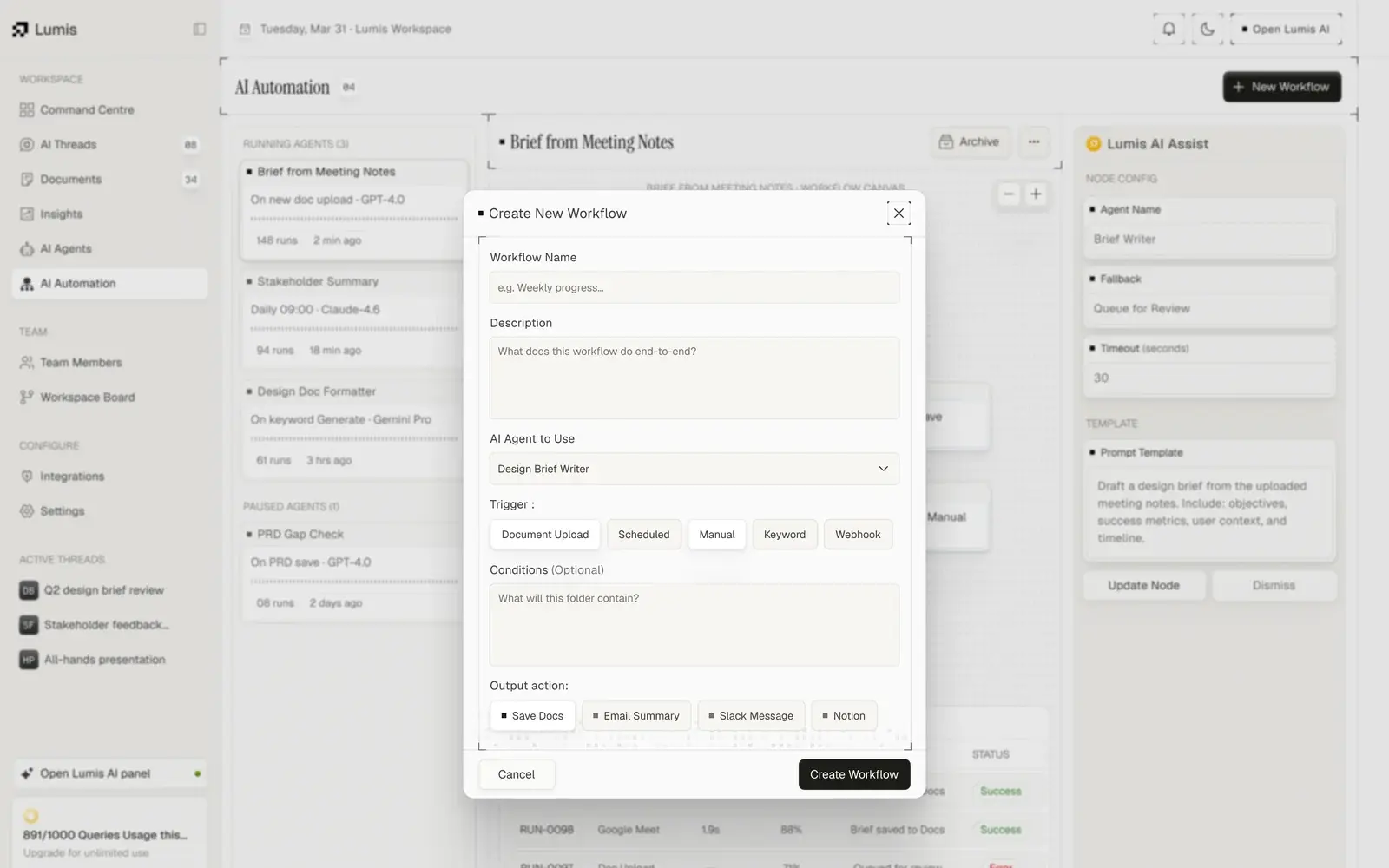
Create a new workflow 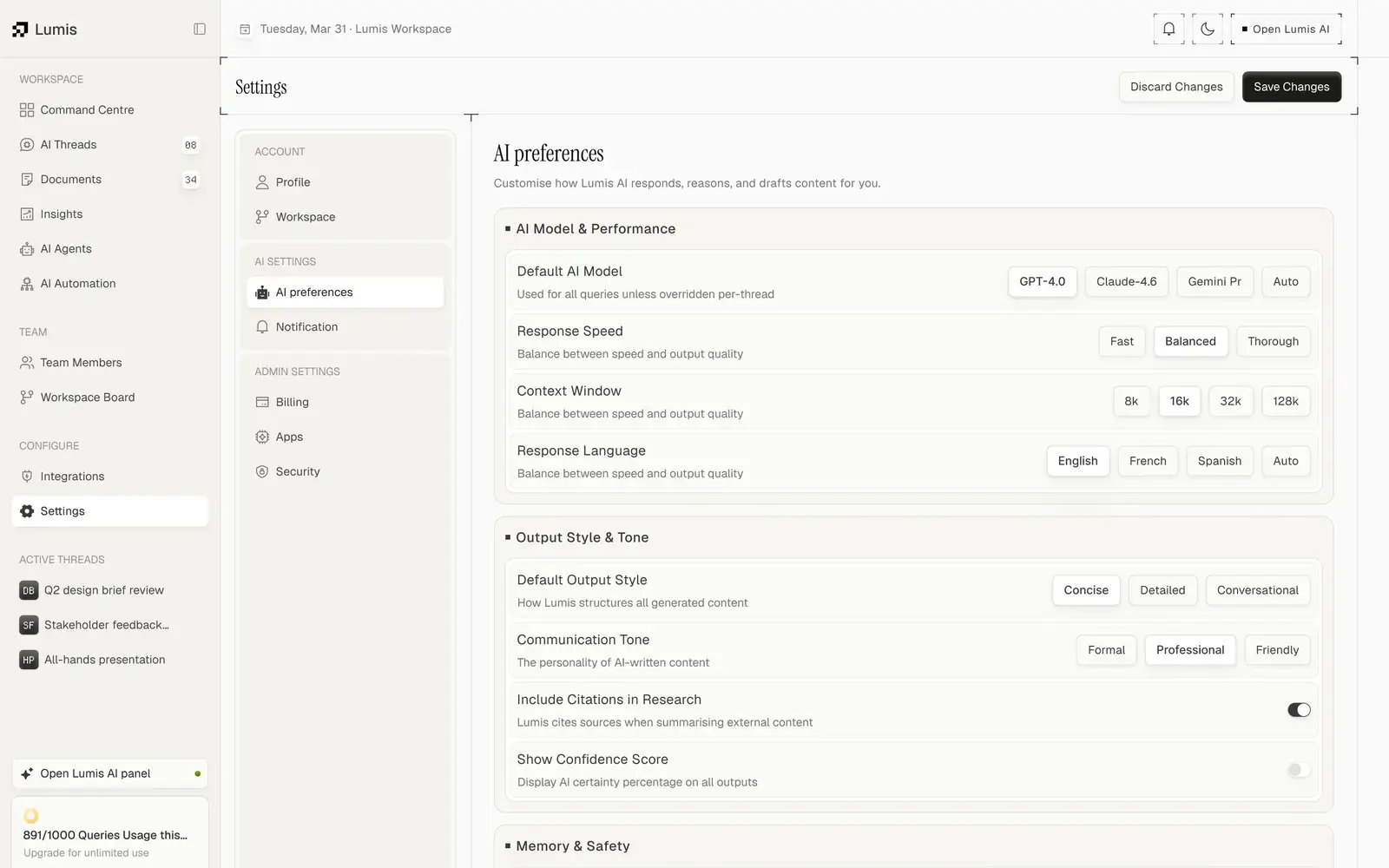
AI preferences
Design system
A small, strict spec behind every screen.
Every screen is built from the same type scale, surfaces and controls, written down in the file so engineers build from the spec rather than from screenshots.
- Instrument Serif headings, Geist body and labels
- Type scale: 24/32, 20/24, 14/20, 12/18
- Cards: 1px #E5E5E5 border, 8px radius
- 32px buttons, 20px badges, 16/20/24 icons
Outcomes
A complete product, designed and ready to build.
What we delivered. Measured business results will be added only with evidence and approval.
One assistant, every page
The Lumis panel and AI Assist bring summaries and next steps to the dashboard, threads and documents.
AI people can check
Labels, models, accuracy and confidence sit beside every result, and nothing is applied without a person.
Automation with a fallback
Agents and workflows are configured in plain fields, with low-confidence results routed to review.